In an age where connectivity is paramount, the Apple AirTag stands out as an ingenious device designed to help users keep track of their belongings effortlessly. However, users may occasionally find themselves needing to refresh the location of their AirTag for various reasons, including placement or connectivity issues. This guide aims to delve into the various methods through which one can effectively refresh the location of an AirTag. A robust understanding of these methods will empower users to ensure their valuable items are always accounted for, while also maximizing the utility of this exceptional tracking device.
Understanding the Basics of AirTag Location Tracking
The AirTag’s primary functionality hinges on utilizing Bluetooth technology to communicate with nearby Apple devices. Through the vast network of Apple products, the AirTag can report its location back to the owner via the Find My app, providing real-time updates. Given this interdependency, there are several nuances to consider when attempting to refresh an AirTag’s location.
1. Ensure Bluetooth is Enabled
One of the simplest yet effective methods to refresh your AirTag’s location is to ensure that Bluetooth is enabled on your paired Apple device. Navigate to the settings menu and verify that the Bluetooth switch is toggled on. This facilitates continuous communication between your AirTag and the device, providing accurate location updates.
2. Verify Network Connectivity
Next, check that your Apple device is connected to a reliable network, either Wi-Fi or mobile data. Since location updates are transmitted through the internet, a stable connection is crucial. If the connection is dormant or weak, it may hinder the AirTag’s ability to provide current location data. Consider disconnecting and reconnecting to your network or even toggling Airplane mode to reset connectivity.
3. Utilize the Find My App
The Find My app serves as the nerve center for all your location-based queries. If you wish to refresh your AirTag’s position, open the app and select the AirTag from your list of devices. Upon selecting your AirTag, the app should begin the process of locating it. The interface will display its current location and any recent updates sourced from devices nearby.
To expedite this process, you can also tap on the “Play Sound” option, which will prompt the AirTag to emit a noise, helping you locate it more precisely if you are nearby. This auditory feedback might also trigger nearby Apple devices to pick up and relay the AirTag’s location promptly.
4. Give It Time to Update
Understanding that updates may not be instantaneous is crucial. The AirTag employs a network that relies on the proximity of other Apple devices, meaning location changes can take several moments to reflect. If you just moved your AirTag or are in an area with limited Apple device traffic, be patient; the location data will eventually refresh.
5. Further Troubleshooting Steps
If location updates remain elusive, consider following these troubleshooting steps:
- Restart Your Device: A simple restart can rectify minor software glitches and establish a seamless connection with your AirTag.
- Check AirTag Battery: A depleted battery may cause the AirTag to lose connectivity. Replace the battery if necessary to ensure consistent functionality.
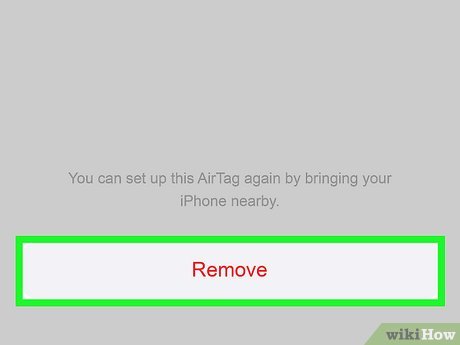
- Reset AirTag: For persistent issues, you may want to reset the AirTag. Remove the battery, wait for a few moments, and then reinsert it. This may facilitate a fresh start.
6. Ensure Location Services are Activated
Location services must be enabled on your paired iPhone or iPad for optimal AirTag functionality. Visit the Settings app, scroll to Privacy, and check that Location Services are activated. Ensure that the Find My app is allowed to access your location at all times. This access is vital for accurately detecting and refreshing your AirTag’s positioning.
7. Updating Software
Keep your iOS device up to date with the latest software versions. Updates not only introduce new features but can also resolve underlying bugs that may impede AirTag functionality. Navigate to Settings > General > Software Update to check for any available updates and install them as needed.
8. Maximizing AirTag Efficiency in Diverse Environments
The environment in which your AirTag operates can greatly influence its efficiency. In urban areas with a high density of Apple devices, refreshing the AirTag location is typically swift. Conversely, rural or less populated settings may not yield immediate updates due to fewer devices being within range. Being cognizant of this can set realistic expectations for how frequently you can refresh location data.
Conclusion
Refreshing the location of an AirTag is generally a straightforward endeavor, but it requires awareness of several key factors. By ensuring optimal settings on your Apple device, utilizing the Find My app efficiently, and being patient through the process, you can regain control and continue to capitalize on this remarkable technology. With these methods at your disposal, you can harness the full potential of your AirTag, keeping your possessions secure and easily traceable at all times.









Leave a Comment