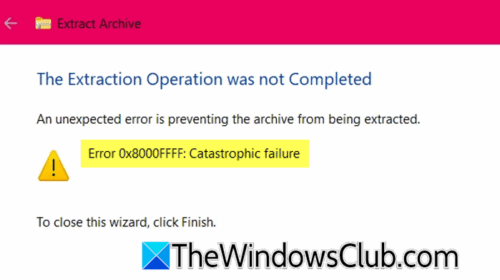
Experiencing the “Error 0x8000ffff Catastrophic Failure” when attempting to extract a file is an issue that can confound even the most technologically adept individuals. This particular error stands as a gateway to a realm of complexities that often warrant deeper exploration. Users frequently encounter it during actions such as file extraction, software installation, or while managing system updates, compelling one to unravel the underlying factors that culminate in such an unsettling occurrence. Here, we shall delve into the various facets of this error, its possible causes, and practical solutions that can assist in mitigating the frustration that ensues.
Understanding the Error: What Does 0x8000ffff Signify?
The error code 0x8000ffff is categorized as a “catastrophic failure” and is typically indicative of a significant malfunction within the Windows operating system or associated software. Such a designation might lead one to assume the worst; however, the causes can vary widely. This code can manifest during numerous processes, such as when extracting ZIP files or during installation updates, leaving users bewildered about its origins.
Common Scenarios Associated with the Error
To grasp the full scope of this error, it’s vital to recognize its frequent settings. Here are some common situations wherein this error may emerge:
- File Extraction: Users attempting to extract files from compressed folders or archives often encounter this issue, especially if the archive is corrupted.
- Windows Updates: A failed update can trigger this error, leading to complications in Windows functionality.
- Software Installations: The error may appear when one tries to install new software, disrupting critical processes and leading to incomplete installations.
Potential Causes of the Catastrophic Failure
Understanding the rationale behind this error can lead to more effective troubleshooting. Here are several probable culprits:
- Corrupted Files: One of the most common instigators of error 0x8000ffff is corrupt files within the system or the specific archive being accessed.
- Malware Infections: Malicious software lurking within your system can wreak havoc, leading to unexpected errors that disrupt the user experience.
- Registry Issues: Problems within the Windows registry—often due to improper installations or uninstalls—can trigger a cascade of failures culminating in this error.
- System Configuration: Incorrect system settings or configurations, particularly concerning user permissions, can impede file extraction processes.
Troubleshooting the Error: Step-by-Step Solutions
When faced with the discouraging appearance of this error, there are several methods that can be employed to rectify the situation. Here, we outline a systematic approach for troubleshooting:
- Run an Antivirus Scan: Begin by scanning your system with reputable antivirus software to eliminate any potential threats that may be causing the error.
- Use System File Checker (SFC): SFC is a built-in Windows utility that can scan for and restore corrupted system files. Open Command Prompt as an administrator and execute the command
sfc /scannow. - Check for Windows Updates: Ensure that your system is up to date. Access ‘Settings’ > ‘Update & Security’ and check for updates to remedy any underlying issues.
- Repair Windows Registry: Utilize tools designed for registry repair cautiously. Back up your registry before making any changes to avoid exacerbating the situation.
- Check User Permissions: Ensure that you have the necessary permissions to access and extract the files. Right-click the file or folder, navigate to ‘Properties’, and inspect the ‘Security’ tab.
- Try Alternative Extraction Tools: If you experience this issue while extracting files, consider using reliable third-party extraction software to see if it bypasses the error.
Preventive Measures: Safeguarding Against Future Errors
While resolving this error is paramount, preventing it from recurring is equally vital. Implementing best practices can fortify your system, reducing vulnerability to such issues:
- Regular Backups: Consistently back up your files to external storage or cloud services to safeguard important data, allowing for recovery in case of corruption.
- System Maintenance: Conduct regular maintenance checks on your system, including disk cleanups and defragmentation, to optimize performance.
- Stable Internet Connection: A reliable internet connection is essential during updates or installations to prevent interruption that could lead to corruption.
- Educate Yourself on Safe Browsing: Understanding the risks associated with malware and adopting safe browsing practices can shield your system from infections.
Conclusion
The “Error 0x8000ffff Catastrophic Failure” serves not only as a frustrating impediment to productivity but also as a poignant reminder of the intricate systems that underpin modern technology. Through understanding its causes and applying effective solutions, users can not only rectify immediate dilemmas but also enhance their overall technological resilience. By adopting preventive measures, one can foster a healthier digital environment that mitigates the risk of future disruptions, allowing for a seamless and more efficient technological experience.











Leave a Comment